Monday, September 26, 2011

Windows 8


Windows 8 has been released for download from MSDN website intended for developer to have a feel and develop applications to suit the new interface. You might be confuse because it won't appear as Windows 8 but as Windows Developer Preview. You may visit this url to download: http://msdn.microsoft.com/en-us/windows/home

I've installed the Windows Developer Preview on laptop as well as tablet. I found out that the minimum resolution needed for the 'Metro style apps' to work is 1024 x 768. However, if your laptop/netbook/tablet maximum resolution still can't reach this resolution, there is a work around which is hacking the registry as explained below:

  1. Run 'regedit'
  2. Search and modify all values “Display1_DownScalingSupported” from “0″ to “1″ 
  3. Restart the system 
  4. Enjoy the two new resolutions: 1024×768 px and 1152×864 px
Here are some interesting stuff I found it better that Windows 7:

Metro Style Apps - really nice especially for tablet/touch screen devices

Large button on screen keyboard - good for tablet/touch screen devices

There are more new features:
  • New login/logout style
  • Lock screen displays full screen picture that can act as a picture frame
  • New task manager interface

In terms of stability, there are few hiccups in this release whereby I realized that if the device were left for quite sometime (2-3 days), it system hangs/very slow after wake up from hybernating.

That's all for now. Stay tuned!

:: aerobrainTech ::

Thursday, July 28, 2011

Recommended Software (preliminary)

I've created a page to list down all software that I recommend for everyday use. This list will be updated from time to time if I found any new interesting software that can help productivity/security/fun in our everyday life in front of this machines (computer!).

Here is the link to the page: Recommended Software. Or you can just click "Recommended" on the tab above.

:: aerobrainTech ::

Monday, July 11, 2011

Firefox 6 Beta

Just after 2 weeks Mozilla launched Firefox 5, now Firefox 6 Beta has already been pushed out to users who sign up for Beta programs (me one of them!) .. So far, I did not notice anything major yet on this Beta version. Below are the official statement from Mozilla Release Notes:

What’s New in Firefox Beta

The latest version of Firefox Beta has the following changes:
  • The address bar now highlights the domain of the website you're visiting
  • Streamlined the look of the site identity block
  • Added support for the latest draft version of WebSockets with a prefixed API
  • Added support for EventSource / server-sent events
  • Added support for window.matchMedia
  • Added Scratchpad, an interactive JavaScript prototyping environment
  • Added a new Web Developer menu item and moved development-related items into it
  • Improved usability of the Web Console
  • Improved the discoverability of Firefox Sync
  • Reduced browser startup time when using Panorama

Stay tuned for more updates!

:: aerobrainTech ::

Friday, June 24, 2011

Firefox 5 Released

After nearly 4 months from the release of Firefox 4, Mozilla has released Firefox 5 and it can be downloaded at Mozilla Firefox Website.

From the layout, there are not much changes compared to Firefox 4, but in their website they summarize as below:
I'm using it right now! Try it!

:: aerobrainTech ::

Tuesday, May 10, 2011

Batch Photos Editing using FastStone Image Viewer

In this digital photography era, I believe many of us want a quick solution to resize, put a watermark or text on every photos before uploading to Internet whether through Facebook, Blogs, Flickr or other sharing sites.

Uploading the original photos are not preferable due to the size of each photo is big. It gonna take hours if you want to upload many photos. In addition, some prefer to have watermark or text on the photos to show that it is belongs to somebody. Yes, you can do it in advance way by setting up batch program in Photoshop. But there is simpler and faster way by using FastStone Image Viewer.

STEP 0
Download and Install the FastStone Image Viewer
Alternate Link: FastStone Image Viewer 4.5

STEP 1
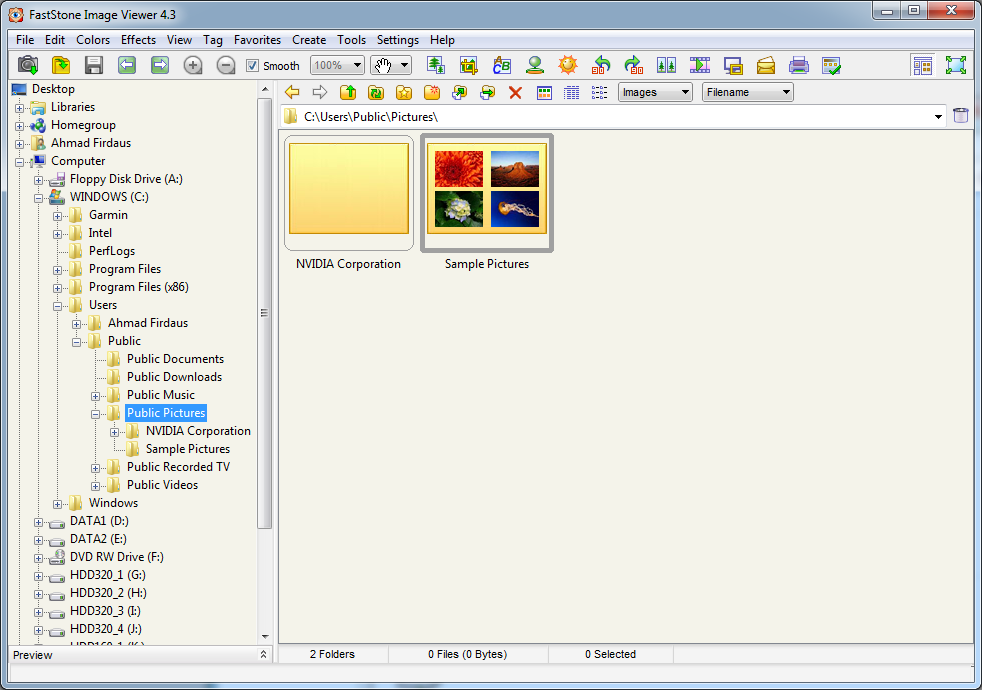
Once installed properly, you can see "Browse with FastStone" when you right-click on any folder.


STEP 2
Select the folder/image that you want to convert.

STEP 3
Go to "Tools > Batch Convert Selected Images" or simply press "F3".

STEP 4
Ensure the desired images/folders are in the Input List. Also, ensure tick "Use Advance Options" and click "Advance Options" to customize.

STEP 5
You may try the customization as follows.


STEP 6
Click "OK" and Click ">Convert". The progress window will come out.

Below are comparison of before and after:

This is only a simple example. This software can do batch color adjustment and you can even design your own logo and put it in every photos as watermark in just few clicks.

This software also capable of doing various type of photos editing. Just hover your mouse at left side of the screen during full-screen view and this tools will pop-up:

I'll let you explore more of this wonderful software!

:: aerobrainTech ::